
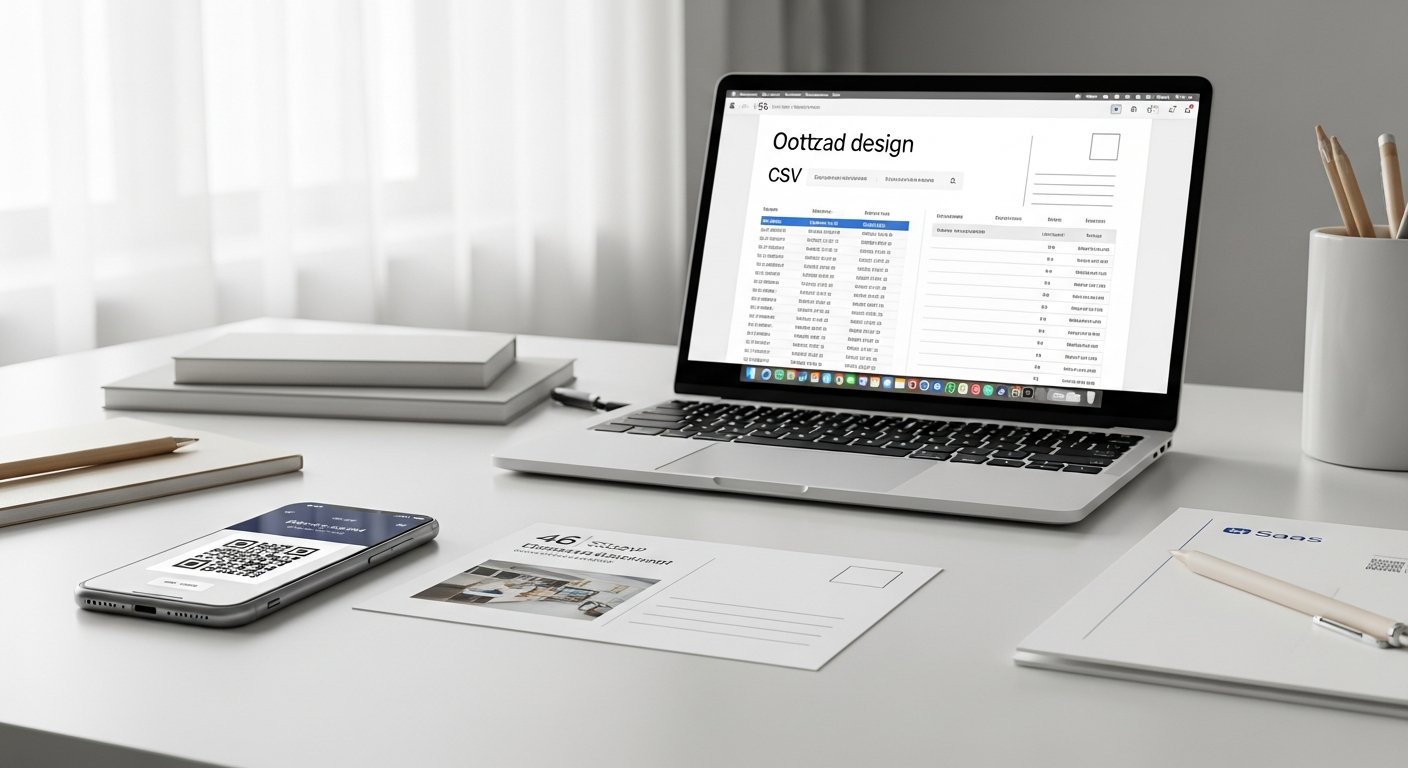
Sending 500 postcards used to mean hiring a print shop, hand-addressing envelopes (or paying someone to), and hauling everything to the post office. That process took days and cost real labor hours. Bulk postcard mailing from CSV collapses all of it into a single browser session — upload your spreadsheet, design your card, and USPS handles the rest.
This guide walks you through every step, from formatting your data file to confirming your campaign is in the mail. By the end, you'll have a live campaign targeting every contact in your list with a personalized, physical postcard — no printer, no stamps, no post office trip required.
Prerequisites: What You Need Before You Start
Before touching any design tool, get these three things in order.
A clean CSV file. Your spreadsheet is the engine of this whole campaign. It needs at minimum: first name, last name, address line 1, city, state, and ZIP code. Additional columns — offer codes, property addresses, expiration dates, account numbers — become variable fields that personalize each card. We'll cover formatting rules in Step 1.
A postcard concept. You don't need a finished design yet, but you should know the campaign's purpose. Are you promoting a seasonal offer? Announcing a new service? Sending a past-due notice? The answer shapes your copy, layout, and call to action.
A WriteToMail account. WriteToMail handles printing, postage, and USPS delivery entirely online. You'll upload your CSV, build your postcard design, map your variable fields, and launch — all from one dashboard.
Step 1: Format Your CSV File Correctly
Expected outcome: A spreadsheet that uploads without errors and maps cleanly to your postcard fields.
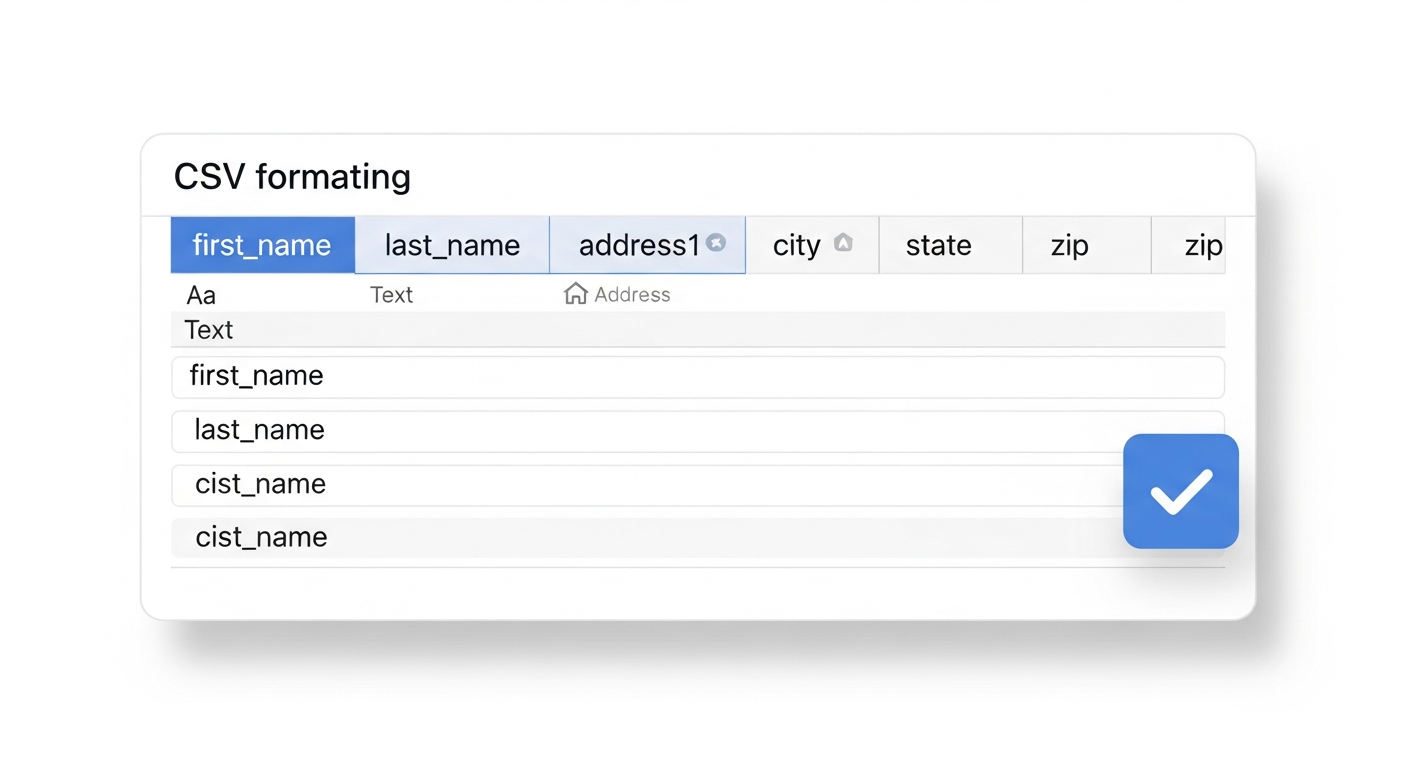
This step determines whether your campaign launches smoothly or stalls with address validation errors. Get it right before you touch the design tool.
Required columns
Every row in your CSV should contain:
| Column Name | Example Value |
|---|---|
| first_name | Sarah |
| last_name | Chen |
| address1 | 4821 Maple Ridge Dr |
| address2 | Apt 3B (optional) |
| city | Austin |
| state | TX |
| zip | 78745 |
Variable data columns
Any additional column you include can become a personalized placeholder on the postcard. Common examples:
offer_code→ "Use code SARAH20 at checkout"expiration_date→ "Offer expires October 31, 2026"property_address→ "Your home at 4821 Maple Ridge Dr may qualify"account_balance→ "Your current balance: $247.00"
Formatting rules that prevent errors
- Save as
.csv, not.xlsx— most platforms, including WriteToMail, expect comma-separated values - No merged cells, no color coding, no formulas — plain text only
- Column headers in row 1, data starting in row 2
- ZIP codes saved as text, not numbers (leading zeros in ZIP codes like
07030get stripped if stored as integers) - Remove completely blank rows — they generate phantom recipients
If your list came from a CRM export or Google Sheets, run a quick scan for duplicate addresses and obvious formatting issues before uploading. The bulk direct mail from spreadsheet guide covers data hygiene in more depth, including how to handle partial addresses and apartment number formatting.
Step 2: Upload Your CSV to WriteToMail
Expected outcome: Your recipient list is imported, address validation is complete, and you can see a clean count of deliverable addresses.
Log into your WriteToMail account and navigate to the bulk postcard mailing tool. Select the option to upload a CSV file and choose your prepared spreadsheet.
The platform will:
- Parse your columns and display a preview of the first several rows
- Flag any rows with incomplete or malformed addresses
- Run USPS address validation against your list
Address validation matters more than most people expect. According to the USPS, approximately 25% of business mail contains addressing errors that delay or prevent delivery. Catching these before you pay to print 800 postcards saves real money.
Review the flagged rows. You have three options for problem addresses: correct them manually in the platform, skip those rows for this campaign, or download the error report, fix the source CSV, and re-upload. For large lists with many errors, re-uploading the corrected file is cleaner.
Once validation clears, confirm your recipient count. That number is your campaign's reach.
Step 3: Design Your Postcard
Expected outcome: A postcard design that includes your message, branding, variable data placeholders, and a clear call to action.
A postcard has roughly 4 seconds to earn attention before it gets set aside or tossed. Design with that constraint in mind.
Layout fundamentals
Standard postcard sizes for bulk mailings are typically 4×6 or 6×9 inches. The 6×9 gives you more room for copy and imagery — worth the slight cost difference for campaigns where your offer needs explanation.
Front of card: Lead with a single, benefit-driven headline. "Save 20% before October 31" beats "Introducing Our Fall Promotion." Use an image that supports the headline — a product photo, a property shot for real estate campaigns, a before/after for service businesses.
Back of card: This is where your variable data lives. Address block in the lower right (required). Return address upper left. Remaining space for your offer details, contact information, QR code, and any personalized fields.
Inserting variable data fields
In the WriteToMail postcard builder, variable fields from your CSV become placeholders in the design. The syntax typically looks like {{first_name}} or {{offer_code}}. When the batch processes, each postcard gets that recipient's actual value substituted in.
A personalized line like "Sarah, your exclusive offer expires October 31" outperforms a generic version by a measurable margin. Research from the Data & Marketing Association has consistently found that personalized direct mail generates response rates 2–5x higher than generic versions, depending on the industry and offer.
Design tips that actually move the needle
- One call to action per card. If you want them to visit your website, say that. If you want them to call, give one phone number. Two competing CTAs dilute both.
- QR codes work. Include a QR code that links to a campaign-specific landing page. It gives you trackable clicks and removes friction from the response path.
- Contrast over decoration. Your headline needs to be readable at arm's length. Light gray text on a white background is not readable at arm's length.
- Leave breathing room. Cramming the card edge-to-edge feels cluttered. White space makes the offer easier to process.
For more design strategy, the guide on running a postcard marketing campaign with CSV upload covers response-oriented design in detail.
Step 4: Map Your Variable Fields
Expected outcome: Every dynamic placeholder in your design is connected to the correct CSV column, and a preview shows accurate personalization for each recipient.
This is the mail merge step. WriteToMail will display each {{placeholder}} you used in your design alongside a dropdown that lets you match it to the corresponding CSV column.
Go through each field:
{{first_name}}→ map tofirst_namecolumn{{offer_code}}→ map tooffer_codecolumn{{expiration_date}}→ map toexpiration_datecolumn
After mapping, use the preview function to cycle through several recipient records. Look specifically for:
- Fields that appear blank (the CSV column has empty cells for some rows)
- Fields that display the raw placeholder text instead of a value (mapping error)
- Overflow — a long value like a full street address stretching outside its text box
Fix these before proceeding. A postcard that says "Hi {{first_name}}, your offer expires {{expiration_date}}" is worse than no personalization at all.
If some rows have empty values for optional fields, you can either exclude those rows from the variable or set a fallback — "Hi there" instead of "Hi Sarah" when a first name is missing.
Step 5: Review, Approve, and Launch
Expected outcome: Campaign submitted to print and mail queue, with a confirmed send count and estimated delivery window.
Before you submit, do one final check:
- Proof the design at 100% zoom. Small typos are invisible at thumbnail size.
- Confirm recipient count. The number you approved in Step 2 should match here.
- Verify return address. This needs to be accurate — misdirected responses hurt campaigns, and USPS needs a valid return address for undeliverable pieces.
- Review postage class. USPS First-Class Mail is standard on the WriteToMail platform — it includes forwarding and return services, which matters for list accuracy.
Submit the campaign. WriteToMail routes it to their printing facility, where each postcard is printed, addressed, and handed to USPS.
USPS delivery timelines
USPS First-Class Mail postcards typically deliver in 2–5 business days from the print date. For a bulk campaign, cards may not all hit mailboxes on the same day — USPS processes by zip code zone, so recipients in your local area often receive their cards a day or two before those in distant states.
Plan campaign timing accordingly. If your offer expires on a specific date, launch with enough lead time that recipients in all zones have several days to act after receiving the card.
Step 6: Track Campaign Performance
Expected outcome: You have a system in place to measure responses and calculate ROI.
Physical mail doesn't have an "open rate" metric the way email does. You track it differently.
Unique phone numbers. Assign a tracking number to this campaign specifically. Any call to that number is attributed to the postcard.
QR codes with UTM parameters. A campaign-specific QR code links to a URL with UTM tags — you'll see exactly how many visits came from the postcard in your analytics platform.
Unique offer codes. The {{offer_code}} field serves double duty: it personalizes the card and tracks redemptions. When someone uses code SARAH20 at checkout, you know the postcard drove that sale.
Response rate benchmarks. Direct mail postcard response rates average around 4.4% for prospect lists and 9% for house lists, according to the Association of National Advertisers. These are averages — verticals like real estate, healthcare, and home services tend to run higher with a relevant offer.
For a deeper look at measuring direct mail ROI alongside channel comparisons, the article on direct mail marketing for small businesses has solid benchmarks broken down by campaign type.
Common Mistakes to Avoid
Uploading a list you haven't cleaned. Old CRM data accumulates bad addresses fast. Before any bulk campaign, remove anyone who hasn't engaged in 18+ months, and scrub obvious errors (missing ZIP codes, "test" entries, duplicate rows).
Using every variable field possible. More personalization isn't always better. If the variable data feels forced — "Hi Sarah, as a resident of 78745..." — it reads as surveillance, not relevance. Use personalization when it genuinely serves the message.
Designing for the screen, not the mailbox. Colors render differently on printed card stock than on a monitor. If your brand relies on a specific color, do a test print before launching 1,000 pieces.
Ignoring address standardization. "St." vs "Street," missing apartment numbers, abbreviation inconsistencies — these don't necessarily prevent delivery, but they can. USPS address validation in Step 2 catches most of it, but your source data quality is the first line of defense.
Launching without a tracking mechanism. A bulk postcard campaign with no response tracking is a cost with no measurable return. Even a single unique QR code per campaign gives you something to measure.
Troubleshooting
CSV upload fails immediately. Usually a formatting issue. Open the file in a plain text editor (Notepad, TextEdit) and confirm it's comma-separated with no extra quote marks around values. Special characters in address fields — like # for unit numbers — occasionally cause parsing errors.
High address validation error rate. If more than 10% of your list flags as undeliverable, the source data has a quality problem. Export the error report, investigate whether you're pulling from an outdated segment, and consider running the full list through a dedicated address verification tool before re-uploading.
Variable field shows raw placeholder text. The field wasn't mapped in Step 4. Go back to the field mapping screen and connect the placeholder to its CSV column.
Design looks different in preview than expected. Fonts embedded in uploaded design files sometimes render differently in the platform builder. Stick to system fonts or export text as outlines if you're uploading a design file.
Next Steps
A single campaign is proof of concept. Once you've seen what bulk postcard mailing from CSV can do for one list segment, the next step is building this into a repeatable workflow.
Consider segmenting your list by geography, purchase history, or customer status — then designing offers specific to each segment. A loyalty customer postcard reads differently than a win-back campaign, and both outperform a one-size-fits-all message.
If you're running campaigns at scale or want to trigger postcards automatically based on CRM events, the guide on how to send bulk mail without going to the post office covers automation workflows worth building.
For industry-specific campaign playbooks — real estate, nonprofits, service businesses — the direct mail postcard ideas for small business article has campaign concepts with design notes and targeting guidance you can adapt for your next send.
The mechanics of bulk postcard mailing from CSV are straightforward once you've done it once. The strategy — who you mail, what you say, how often — is where campaigns get interesting.
Sources
- USPS Postal Pro — Address Quality — statistics on the percentage of business mail containing addressing errors
- Association of National Advertisers (ANA) — Direct Mail Response Rates — benchmarks for postcard response rates on prospect vs. house lists
- Data & Marketing Association (DMA) — research on personalized direct mail response rate lift vs. generic versions